
Scard splits scanning into two steps. Apple Vision reads the text on your iPhone, then, when you are online, an AI model sorts that text into fields such as name, title, company, phone and email. Only the recognized text is sent, never the image, and you review every field before saving.
- Step 1: on-device Apple Vision OCR reads the text
- Step 2: online, an AI model (GPT-4o-mini) sorts plain text into fields
- Offline or on error, an on-device parser takes over
- You review and edit every field before the card is saved
Why reading text is not enough
OCR turns pixels into characters, but it does not know what the characters mean. A business card is a small, free-form layout: the name may be large and centered, the title may sit above it, the company may be a logo, and the phone number may carry a label like “M” or “Direct.” Plain OCR gives you a block of text in reading order, and something has to decide which line goes where.
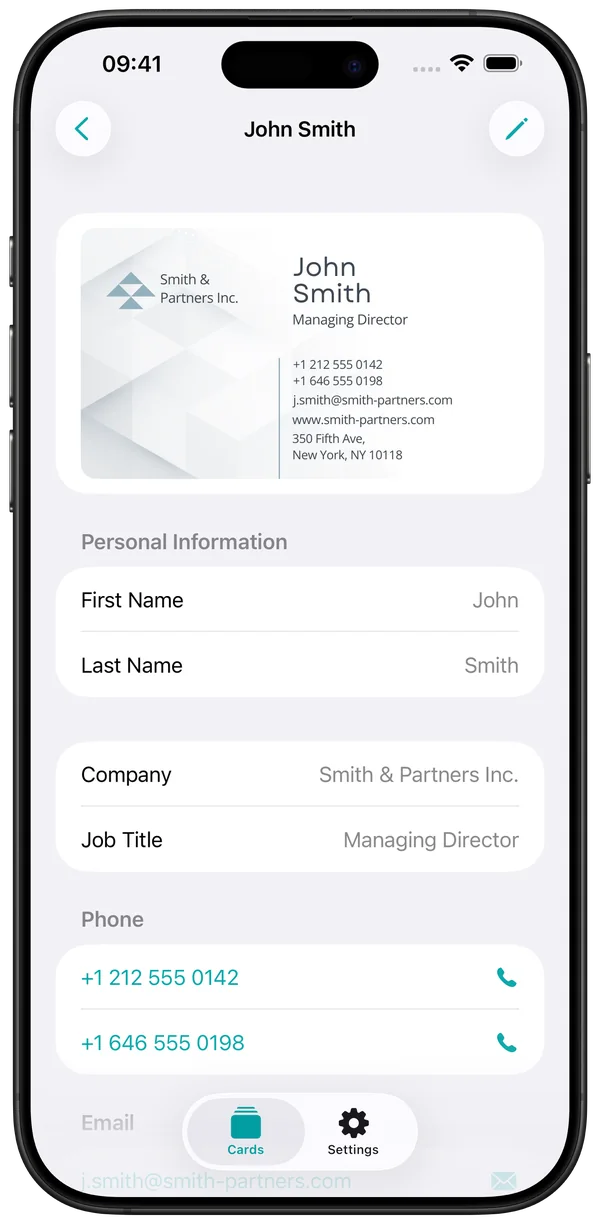
That second step is field sorting. Scard extracts first and last name, job title, company, several phone numbers, fax, several email addresses, website and postal address. Getting these into the right fields is what turns a scan into a usable contact and saves you cutting and pasting a pile of text.
How the AI step works, and what leaves your phone
When an internet connection is available, Scard sends the recognized plain text over HTTPS, through LuvleeLab’s Cloudflare proxy, to an OpenAI model (GPT-4o-mini). The model returns the text sorted into fields. This happens automatically on each online scan; it is not an opt-in setting.
Only the text is sent; the card image never is. The request carries no name, Apple ID, device ID or location, and the proxy does not expose your IP address. LuvleeLab does not store the request. OpenAI may retain API inputs for up to 30 days for abuse monitoring and does not train on API data by default.
What is on the card is, of course, in the text: a person’s name, email and phone number are part of what the model sees. If that is a concern for a particular card, scan in airplane mode and the on-device parser will be used instead. The wider privacy picture is on the privacy page.
Where it helps, and why you still review
The AI step helps most with messy layouts: two-sided cards, cards with a slogan, multiple job titles, several phone numbers with labels, or addresses broken over three lines. A rule-based parser looks for patterns like an @ sign or a digit run; a language model can use context, such as recognizing that a short line under a name is probably the title.
It can still go wrong: models can swap a first and last name on an unusual card, drop a line, or read a decorative word as a job title. That is why every scan ends on an editable detail screen. You check the fields, fix what is off, and only then save. Nothing is written to your Contacts until you choose to save.
If you are offline, or the online request fails, the on-device parser sorts the fields instead, so the scan never gets stuck waiting. The offline page describes that fallback. For better input to either step, follow the scanning tips: flat card, even light, no glare.
AI sorting compared with the offline parser
Both methods fill the same fields, and you review both. The difference is how they decide. The offline parser relies on structure it can detect on the device: patterns for emails, web addresses and phone numbers, and layout clues for names and titles. It works anywhere and copes well with conventional cards.
The online model reads the text as language. It can tell that a line is probably a job title, that a company name is not a person’s name, or that a number labeled “Fax” is a fax. That is the case for using it. The cost is that text leaves the device, which is why we describe it precisely above and why you can avoid it by scanning offline.
Neither replaces your review. The honest expectation is that most cards come out right and a minority need a small fix. If you scan a lot, you will quickly learn which of your card types need a second look. For the whole workflow from scan to contact, see the Contacts guide.
AI sorting can still make mistakes, especially with decorative fonts or unusual layouts, so check each field. It runs automatically when you are online. Free scans are limited to 2; unlimited scanning needs Pro.
How to scan with AI field sorting
- Frame the card
Place the card flat in good light and let Scard detect the edges.
- Crop and confirm
Adjust the corner handles on the full-screen preview, then confirm. Text recognition runs on your iPhone.
- Let the fields fill in
When online, the recognized text is sorted into fields by the AI model. Offline, the on-device parser does it.
- Review and save
Correct any field, add a tag or note, then save the card.
Frequently asked questions
Is the card image sent to the AI?
No. Only the recognized plain text is sent, and only when you are online.
Can I turn AI sorting off?
It is automatic on every online scan and is not a setting. Scan offline and the on-device parser is used instead.
What if the AI sorts a field wrongly?
Edit it on the detail screen before saving. You review every field before the card is stored.
Which AI model is used?
An OpenAI model, GPT-4o-mini, reached through LuvleeLab's Cloudflare proxy.