
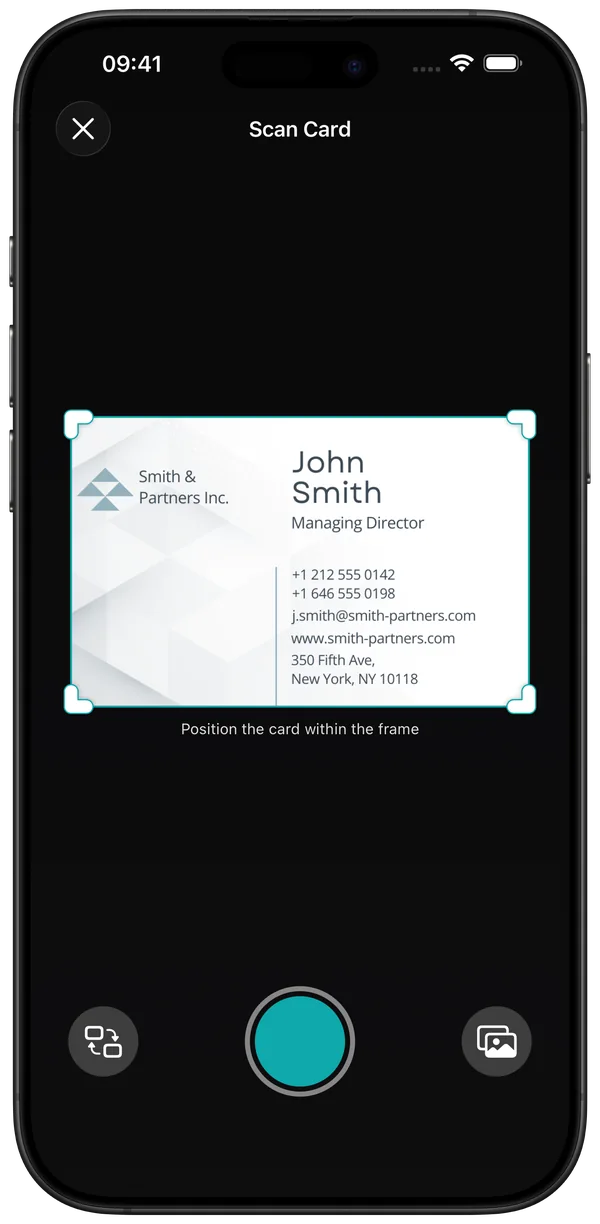
You can scan a business card from a photo you already took. Use the photo picker on Scard’s scan screen to choose the image, crop it with the corner handles, and Scard recognizes the text on your iPhone and fills in the fields for you to review.
- Photo picker on the scan screen to choose an existing picture
- Full-screen crop with corner handles before extraction
- Same on-device Apple Vision recognition as a live scan
- Review every field before saving
When a photo is the better starting point
Not every card reaches you in person. A colleague sends a picture of a card from a meeting you missed. You photographed a stack of cards on a table at the end of a long day. Someone shares a card in a group chat. In each case the card is a picture in your library, and retyping it is the slow option.
Scard lets you pick that picture from the photo library on the scan screen. You choose it with the system photo picker, so you decide which image the app sees. The same pipeline runs as for a live scan: crop, text recognition with Apple Vision on the device, then field sorting. The image is not uploaded.
From photo to contact, step by step
After you choose the photo, Scard shows it full screen with corner handles. Drag them to the card’s edges so that the background, the table, the hand holding it, is cut away. A tight crop gives text recognition a cleaner start and helps the field sorting, because stray text from a laptop screen or a menu is not mixed in.
Confirm the crop and the text is recognized on your iPhone. Online, the recognized text is sorted into fields by an AI model; offline, an on-device parser does it, as described on the AI sorting page. You then see the card detail with name, title, company, phones, emails, website and address, all editable.
Check the fields, add a tag or note, and save. From there the card behaves like any scanned card: it is searchable, shows up in Spotlight, is checked for duplicates, and can be saved to Contacts or exported. Saving the card image to your Photos library is a separate, optional step.
Getting a usable result from a photo
The quality of the result depends on the picture. A few things matter most: the card should be flat and fully in the frame, the text sharp, and the light even. Glare across a glossy card and shadows from your own hand are the usual culprits. A photo taken at an angle can still work after cropping, but a straight-on shot is more reliable.
Resolution matters less than focus. A phone photo taken from a normal distance is usually enough; a tiny thumbnail forwarded through a messaging app that compresses it heavily may not be. If the recognized text looks wrong, retake the photo or ask the sender for the original. The scanning tips apply equally to photos.
If you are digitizing a backlog of cards, how to digitize business cards compares photographing and scanning, and the Contacts guide shows the one-tap save afterward.
Photo import or live scan
Both routes end at the same detail screen, so the choice is practical. Use a live scan when the card is in your hand: the camera frame and automatic edge detection make it the quickest route, and you can retake the shot if the capture is poor.
Use photo import when the card exists only as a picture, or when you are processing many cards later from a photo you took in a hurry. Importing also lets you scan at your own pace, away from the person who gave you the card, which some people prefer for a quiet end-of-day session.
One caution: a photo of several cards on a table should be cropped to one card at a time. Import the picture once per card and crop each in turn. Retaking a poor shot is usually faster than correcting a bad result. See also scanning offline, since photo import works there too.
Whichever route you use, the review step is the same: read the name, title, company, phone and email once more before you save, because that check catches the few mistakes that any text recognition makes. A short note about where you got the card, such as the sender or the event, makes the entry far more useful later.
A blurry, heavily compressed or glare-covered photo gives poor text. Scard also cannot read scripts it does not support (Cyrillic, Greek, CJK, Arabic). Free scans are limited to 2; unlimited scanning needs Pro.
How to scan a business card from a photo
- Open the scan screen
Launch Scard and go to the scanner.
- Choose the photo
Use the photo picker to select the card picture from your library.
- Crop the card
Drag the corner handles to the card's edges and confirm.
- Review and save
Check the extracted fields, add a tag, then save the card.
Frequently asked questions
Can I scan a card from a screenshot or a forwarded picture?
Yes, if it is in your photo library and the text is sharp enough to read.
Is the photo uploaded?
No. Text recognition runs on your iPhone. Only the recognized text is sent for AI sorting when you are online.
Which languages can it read?
The same 22 recognition languages as a live scan. Cyrillic, Greek, CJK and Arabic scripts are not supported.
Does Scard read my whole photo library?
You choose the picture with the system photo picker.