
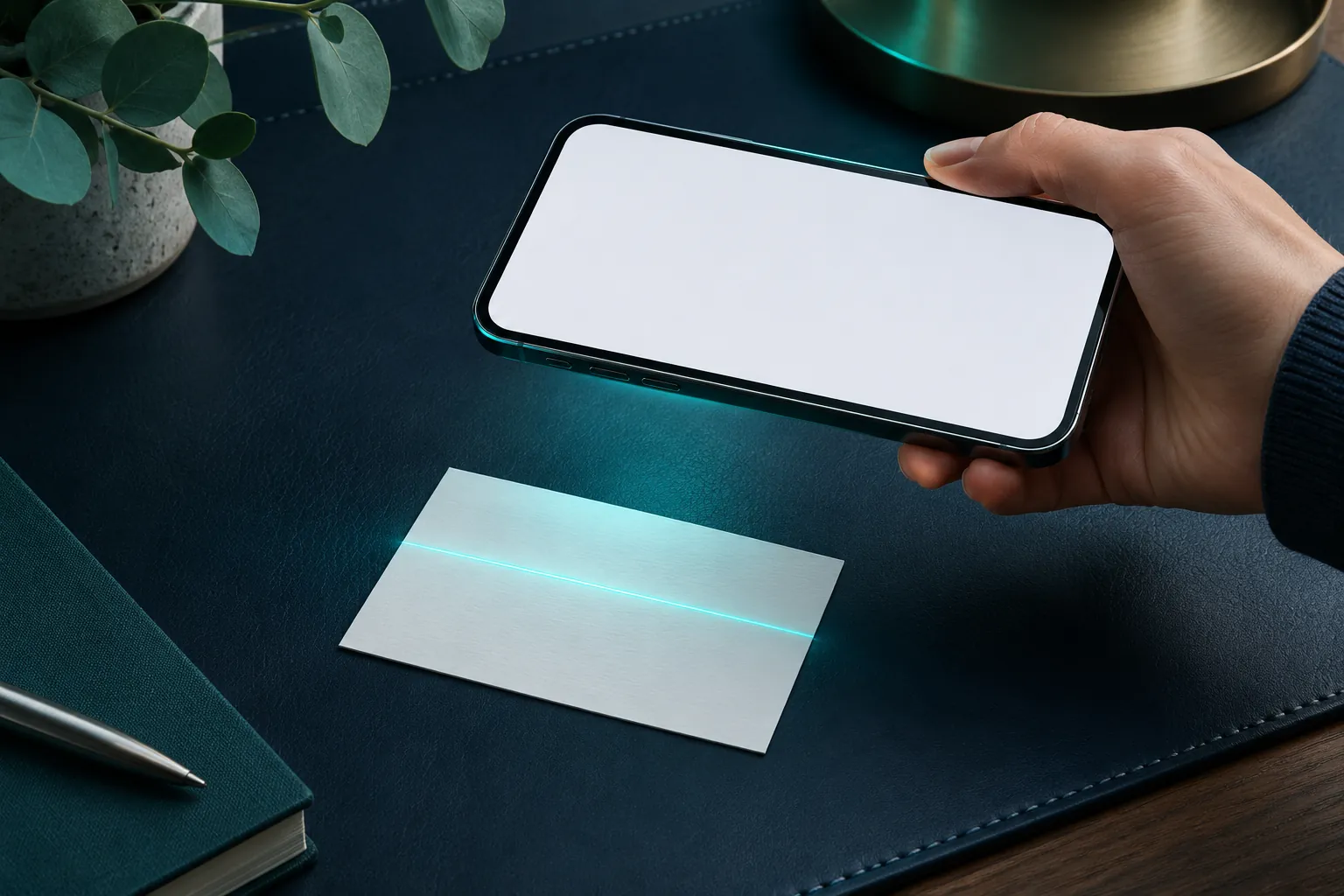
Hold the business card inside Scard's camera frame and Apple Vision OCR reads it on your iPhone, pulling out the name, title, company, phone, fax, email, website, and address. Check the fields, tap Save, and the person lands in your iPhone Contacts. No account and no internet needed.
From Camera to Contact in One Pass
A business card scanner exists to skip manual data entry. With Scard, you hold the card inside the on-screen frame and the camera does the reading. Auto edge detection squares the card up so the text is clear, then Apple Vision OCR runs on your iPhone to recognize the printed information.
In a single pass, Scard extracts the fields that matter on a business card:
- Full name and job title
- Company name
- Phone numbers (mobile, office, and more)
- Fax number
- Email addresses
- Website
- Postal address
Because the OCR runs on-device, this works with no internet connection, which helps in a conference hall with patchy Wi-Fi or on the flight home from a trade show. When you do have a connection, the recognized text (never the card image) is sent anonymously over HTTPS to an AI service that sorts it into fields, which helps with unusual layouts, dual-language cards, or dense designer typography. Offline, an on-device parser does the sorting. Either way, the card image never leaves your device.
Once the fields are on screen, review them. Names on cards can be stylized and phone numbers sometimes run together, so a quick glance confirms everything looks right before it lands in your address book.
Saving to iPhone Contacts with One Tap
After the scan, tap Save to Contacts and Scard writes the extracted fields into your iPhone's native Contacts app, the same place your phone, Mail, and Messages already look people up. There's no separate silo to maintain.
Scard also detects duplicates, matching by email first and then by name and company. If you scan someone you already have, you can merge the new details into the existing card, replace it with the new scan, or add it as a new card. That keeps your address book from filling up with three slightly different versions of the same person after a busy week of meetings.
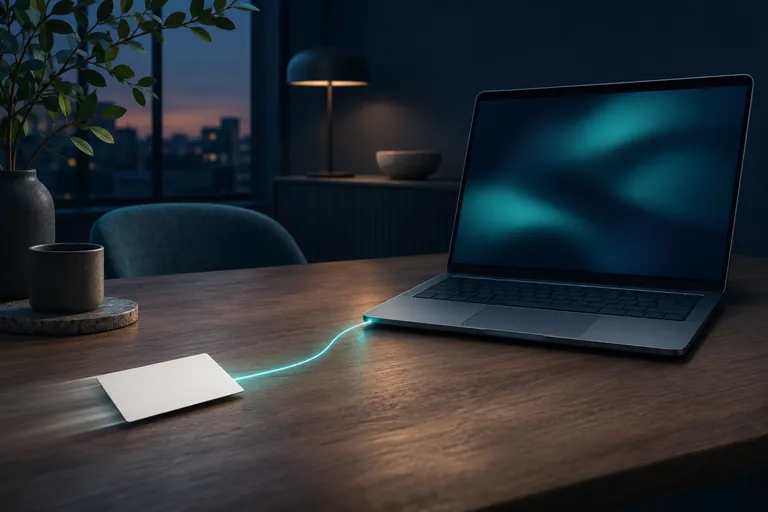
Everything you scan syncs between your iPhone and iPad through iCloud, so a card captured at a booth is on your iPad by the time you sit down. There is no account to create: your data lives on your device and in your own iCloud storage, not on a vendor's server.
Batch-Scanning a Whole Stack of Cards
At a conference you come home with a rubber-banded stack of cards. A few habits make clearing it fast:
- Scan in one session. Work through the pile while you're already in the scanning flow, instead of opening the app once per card over the following week (which is how cards end up forgotten in a drawer).
- Use good, even light. Lay the cards on a plain, matte surface near a window or under office lighting. Glossy cards and hard glare cause most missed characters, so tilt slightly to kill reflections.
- Tag as you go. Add the event name as a tag on each card, such as "DMEXCO 2026" or "Q3 Sales Trip", so the whole batch is grouped and searchable later.
- Import from photos. Already snapped pictures of cards in a hurry? Use the photo-library import to process them later like a live scan.
Reviewing each card takes a moment, and the payoff is a follow-up list built while the conversations are still fresh.
How to Scan a Business Card to Contacts with Scard
- Open Scard and frame the card
Launch the app on the scan screen and hold the business card inside the frame. Auto edge detection squares it up automatically.
- Let the OCR read it
Apple Vision OCR runs on-device and extracts the name, title, company, phone, fax, email, website, and address in one pass.
- Review the extracted fields
Check the fields on screen and correct anything that looks off, such as stylized names or run-together numbers.
- Tap Save to Contacts
Save the person straight to your iPhone Contacts. If it's a duplicate, choose to merge, replace, or add as new.
- Add a tag (optional)
Tag the card with the event or industry so you can find and group it later, then move on to the next card.
Frequently Asked Questions
Which fields does Scard extract from a business card?
Full name, job title, company name, phone numbers, fax, email addresses, website, and postal address, all in one pass using on-device Apple Vision OCR.
Does scanning work without an internet connection?
Yes. OCR runs on your device with Apple Vision, so scanning works fully offline. When you're online, only the recognized text (never the image) is sent anonymously for AI field sorting; offline, an on-device parser takes over.
What happens if I scan someone I already have?
Scard detects duplicates by email first, then by name and company. You can merge the new details into the existing card, replace it with the new scan, or add it as a new card.