Business Card Scanner: To Contacts in Seconds
Turn a stack of cards into clean, searchable contacts before you leave the room.
Point your camera at any business card and Scard reads the name, title, company, phone, email, and more. Save straight to iPhone Contacts, tag it, or export to CSV and vCard when you're ready.

Free to download · iOS 17+
- On-device Apple Vision OCR: scanning works with no internet, and no card image ever goes to a third-party server
- No account required: download and start scanning immediately, with private iCloud sync across your Apple devices
- One-tap save to iPhone Contacts, plus CSV, vCard, and plain-text export. Free to download
See It in Action
How It Works
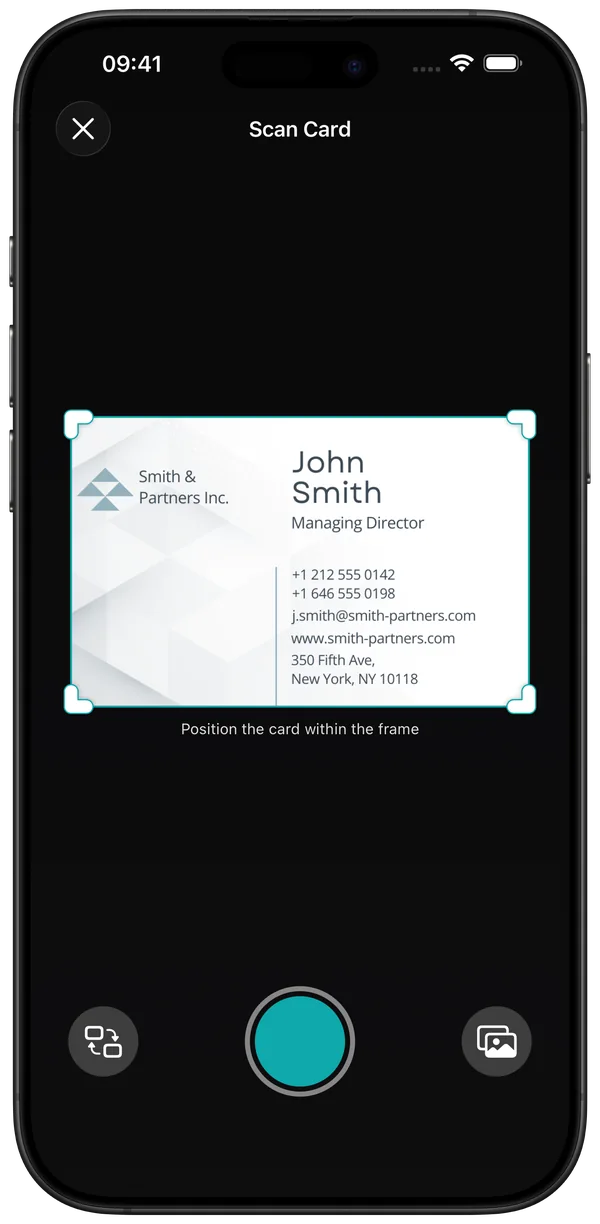
Point your camera at the card
Open Scard and hold the business card inside the frame. Auto edge detection squares it up, or tap the photo icon to import a card you already photographed.
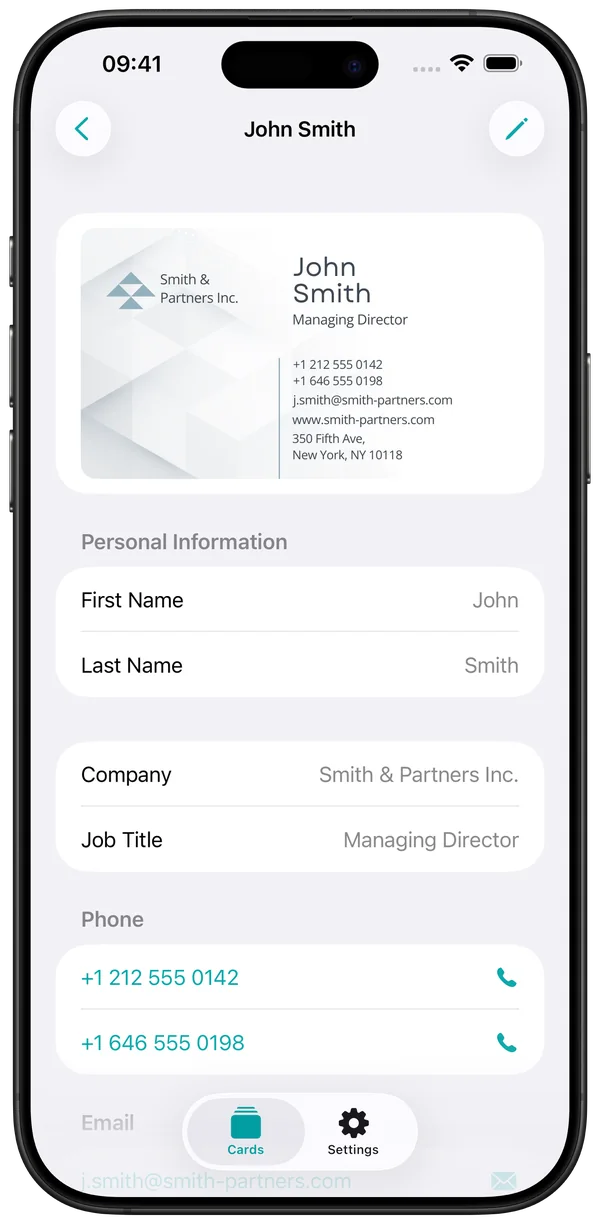
Fields are extracted automatically
Apple Vision OCR runs on your device and pulls out the name, title, company, phone, fax, email, website, and address, with no internet needed. When you're online, only the recognized text (never the image) is sent anonymously to an AI service that sorts it into fields; offline, an on-device parser takes over.
Save to Contacts or tag it
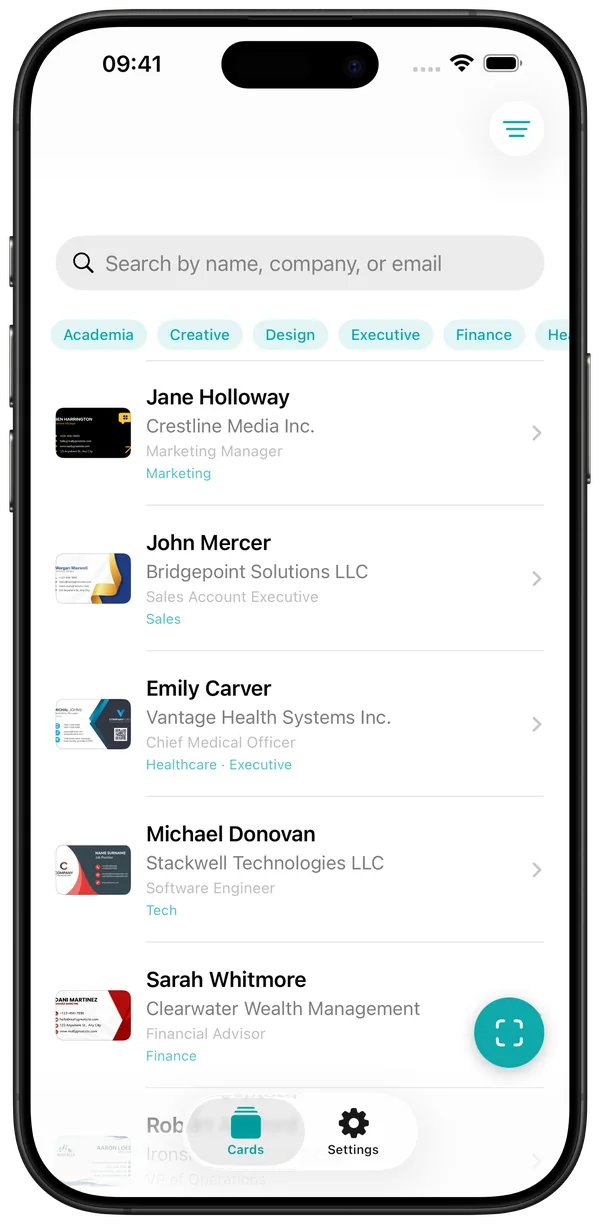
Review the fields, then save straight to your iPhone Contacts with one tap. Add a tag, like the event name or industry, so you can find the card later.
Export when you need to
When it's time to move contacts into a spreadsheet, Outlook, or a CRM, export your cards as CSV, vCard, or plain text. Everything syncs privately across your Apple devices via iCloud.
Everything Scard does with a card
From the first scan to the follow-up email, here is how each step works.
- Offline business card scannerText recognition runs on your iPhone, so scanning works without a connection.
- Private scanner, no accountNo sign-up, images stay on your device, and your cards sync through your own iCloud.
- AI field sortingOnline, an AI model sorts recognized text into fields; you review before saving.
- Foreign-language business cardsOn-device text recognition in 22 languages, with accents and diacritics.
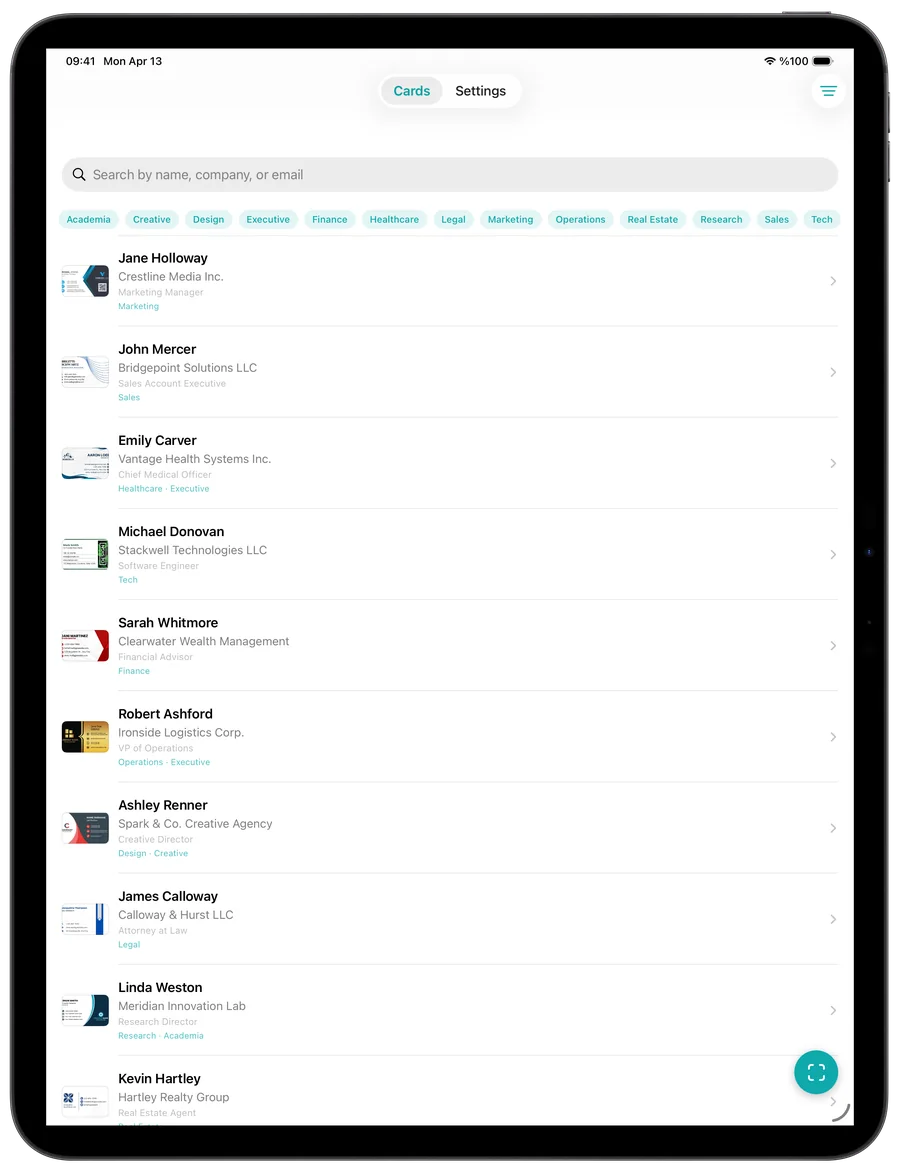
- Business card scanner for iPadUse Scard on iPad in any orientation, with cards synced from your iPhone.
- Scan a card from a photoPick a card photo from your library, crop it, and extract the fields.
- Export to CSV, vCard and PDFWhole-collection CSV and PDF, plus vCard, image or text for a single card.
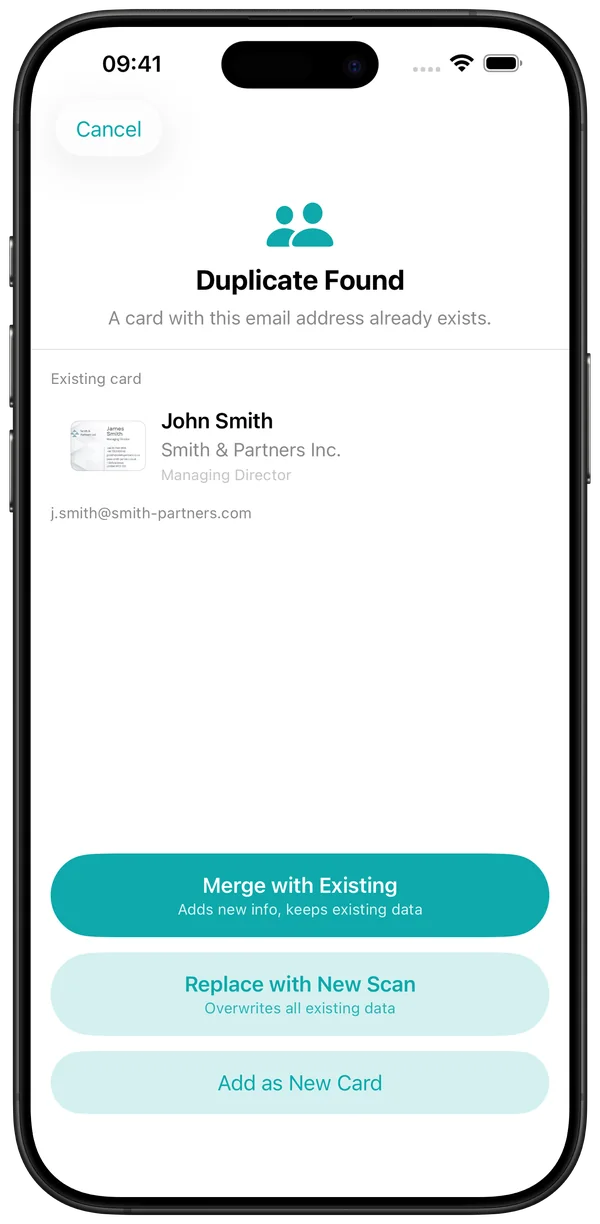
- Duplicate card detectionMatches by email, then name and company, with merge, replace or add as new.
Free on the App Store
Download Business Card Scanner - Scard for free on iPhone and iPad running iOS 17 or later. Scan cards, extract every field, and save to Contacts without an account. The free version includes 2 saved scans; after that, a Pro subscription or lifetime purchase keeps you scanning. On-device OCR and private iCloud sync are built in.
Business Card Scanning Guides
Practical guides for turning scanned cards into contacts, spreadsheets, and CRM records.
All guides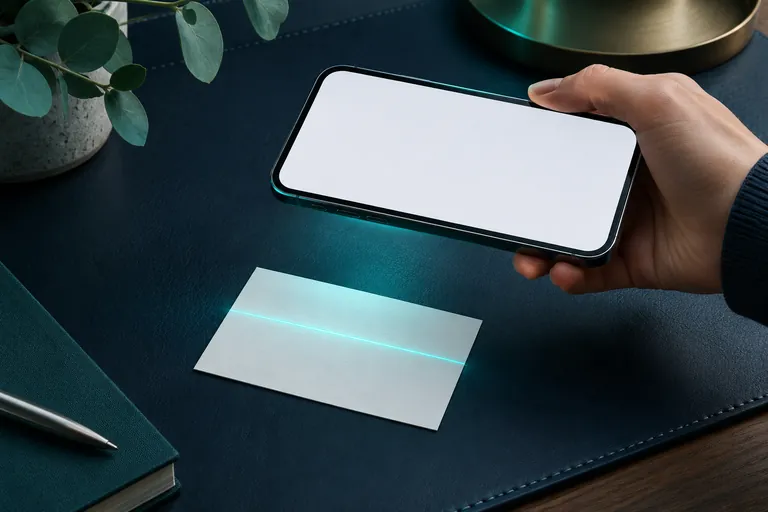 Scan Business Cards to iPhone ContactsFrom camera to auto-extracted fields to one-tap save, with tips for batch-scanning a stack of cards.
 Business Cards to Excel (CSV)Batch-scan cards, export a CSV, and open it in Excel or Google Sheets. No online converter needed.
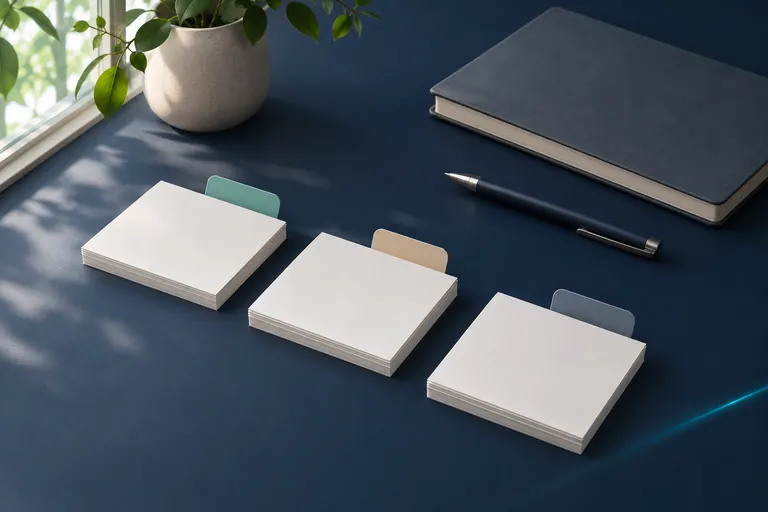 Organize Business Cards DigitallyTag cards by event or industry, search by name or company, and run a 24-hour follow-up routine after networking.
 Best Business Card Scanner App: A ChecklistA neutral privacy checklist: offline OCR, no forced account, data location, export freedom, tags, and field coverage.
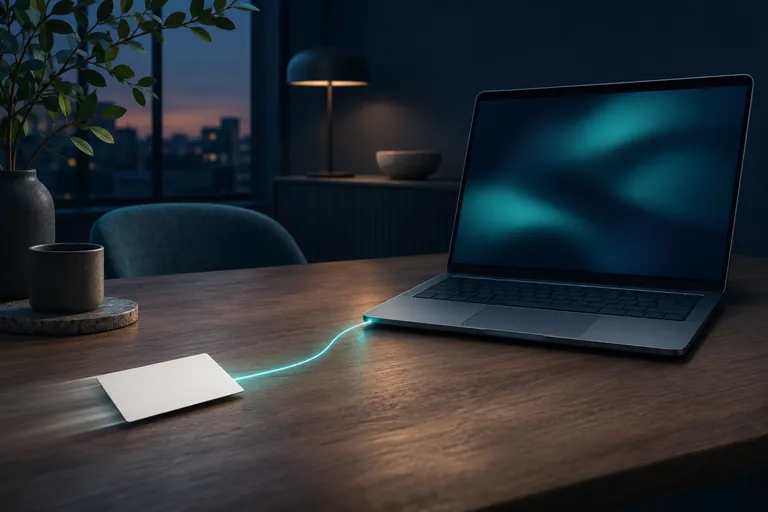 Scan Business Cards Into Outlook or a CRMExport a vCard or CSV from Scard, then import it into Outlook or any CRM using their own import tools.
Frequently Asked Questions
All questionsHow do I scan a business card to iPhone Contacts?
Open Scard, point your camera at the card, and on-device OCR extracts the name, title, company, phone, fax, email, website, and address. Review the fields and tap Save to add the person to your iPhone Contacts. No typing, no account. Learn more
Can I export scanned cards to Excel or CSV?
Yes. Scard exports your cards as a CSV file that opens directly in Excel and Google Sheets, with each contact as a row and every field in its own column. You can also export vCard or plain text. Learn more
How do I organize the cards I scan?
Add custom tags by event or industry as you scan, then search or filter by tag, name, or company across your whole collection, including from Spotlight on your home screen. A quick 24-hour follow-up routine turns cards into contacts. Learn more
Is my data private?
Yes. OCR runs on-device with Apple Vision, so card images aren't sent to third-party servers. When you're online, only the recognized text (not the image) is sent anonymously for AI field sorting, and LuvleeLab doesn't store it. Your collection syncs only through your own iCloud, there's no account, and your data is never sold. Learn more
Can I import scanned cards into Outlook or a CRM?
Yes, through export. Scard doesn't integrate directly with Outlook or CRMs, but it exports a vCard or CSV that you import using their own tools: Outlook's People → Import, or your CRM's import wizard with column mapping. Learn more
Which fields does the scanner extract?
In a single pass, Scard extracts the full name, job title, company name, phone numbers, fax, email addresses, website, and postal address from a business card.
Does the app work offline?
Yes. Scanning uses Apple Vision OCR directly on your device, so it works with no internet connection. When you're online, the recognized text (never the image) is sent anonymously for AI field sorting; offline, an on-device parser takes over.
Do I need an account to use Scard?
No. There's no account and no sign-up. Download and start scanning immediately. Your card collection syncs privately across your Apple devices through your own iCloud. Requires iOS 17 or later on iPhone and iPad.
Popular guides and articles
- What Is a vCard (.vcf) File? Format, Contents, How to Open
- Trade Show Lead Capture Checklist: Before, During and After
- Scan a Business Card on iPhone Without an App: What Works
- Import a vCard (VCF) to Outlook: Single Contact or Batch
- Import Business Cards to Zoho CRM: Contacts and Leads CSV
- Import Business Cards to Salesforce: Leads CSV Guide
- Import Business Cards to HubSpot: Scan, Export CSV, Map Columns
- Import Business Cards to Google Contacts (CSV or VCF)
- Blog
Clear Your Card Stack Before You Leave the Room
Stop transcribing business cards by hand. Scard reads every field on-device, saves to your iPhone Contacts with one tap, and exports to CSV or vCard when you need it. No account, private by design. Free to download on the App Store.
Free to download · iOS 17+