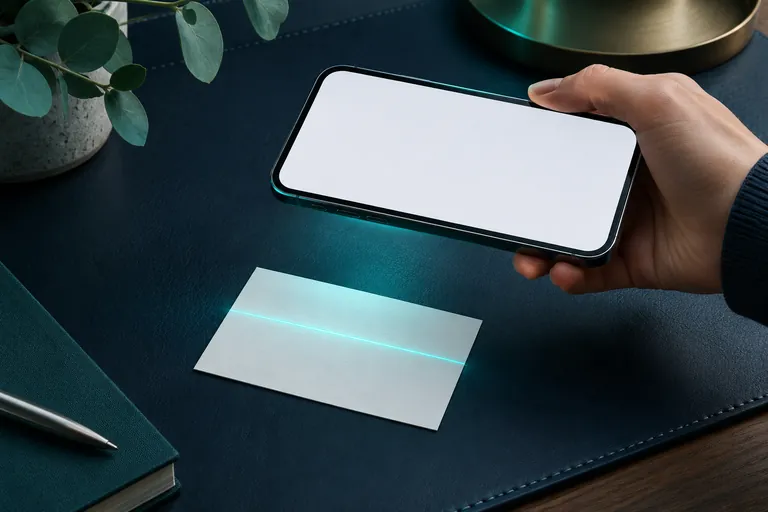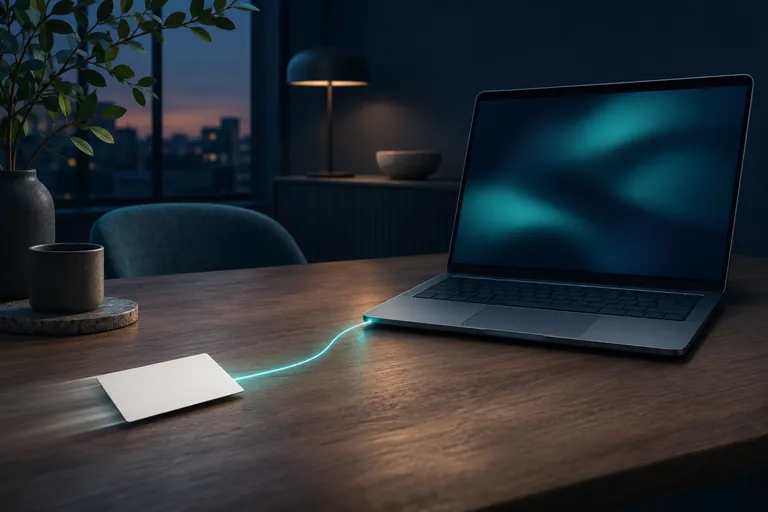


CSV is the file format to use. Export your Scard collection as a CSV and it opens in Excel or Google Sheets with one contact per row and one field per column (name, company, phone, email). Scanning happens on your iPhone, so your cards never go to an online converter.
Why CSV Is the Right Format for a Spreadsheet
CSV (comma-separated values) is a common exchange format for tabular data. Mainstream spreadsheet programs read it, including Microsoft Excel, Google Sheets, Apple Numbers, and LibreOffice Calc. When Scard exports your scanned cards as CSV, each contact becomes a row and each extracted field (name, title, company, phone, fax, email, website, address) becomes a column. That's the shape a spreadsheet expects, so no reformatting is needed on the other side.
This matters when you want to do more than call people. A spreadsheet lets you sort leads by company, filter by the event where you met them, add a column for follow-up status, or hand a clean list to a colleague. Most email tools and CRMs also accept CSV for bulk import, which makes it a practical bridge between a pocketful of cards and the systems your team runs on.
Scard also offers vCard export for a single card (ideal for contact apps and address books) and plain text (handy for pasting details into an email or note). For anything spreadsheet-shaped, choose CSV.
Opening Your CSV in Excel or Google Sheets
Once you've exported the CSV from Scard, getting it into a spreadsheet is straightforward.
In Microsoft Excel:
- Open Excel, then choose File → Open and select the exported .csv file (or double-click the file if Excel is your default handler).
- Excel places each contact on its own row with the fields split into columns automatically.
- If a column doesn't split correctly, use Data → Text to Columns and choose "Delimited" with a comma as the separator.
In Google Sheets:
- Open Sheets and choose File → Import → Upload, then select the CSV file.
- Pick "Replace spreadsheet" or "Insert new sheet," leave the separator as "Detect automatically," and import.
- Your contacts appear as neatly separated rows and columns, ready to sort and filter.
A quick tip for international cards: if you see accented characters look garbled, the file's text encoding is the culprit. Choosing UTF-8 on import (Google Sheets does this automatically; Excel offers it in the import dialog) keeps names like "Müller" and "Café" intact.
A Private Alternative to Online Card Converters
Search for "business card to Excel converter" and you'll find plenty of websites that ask you to upload a photo of your card to their servers. That's a real privacy trade-off: you're handing someone else's contact details (a name, a direct phone line, a work email) to a third party you don't control, often without that person's knowledge.
Scard works differently. The OCR runs on your device with Apple Vision, so the card image never leaves your iPhone. When you're online, only the recognized text is sent anonymously to sort it into fields, and LuvleeLab doesn't store it. Your collection syncs only through your own iCloud, and there's no account. When you export a CSV, the file is generated locally and you decide where it goes: Excel on your own machine, a shared drive your company already trusts, or an email.
You get a spreadsheet-ready file without paying for it with everyone else's privacy. For anyone handling client or prospect data under GDPR or a company data policy, keeping the raw scanning on-device is the safer default.
How to Export Business Cards to Excel with Scard
- Scan your cards
Scan the business cards you want to export, saving each one to your Scard collection. Tag them by event if it helps.
- Open the export option
Go to your card collection and choose to export. Select the cards you want, or export the whole collection.
- Choose CSV as the format
Pick CSV (Excel-compatible) from the export formats. Scard generates the file on your device.
- Open the file in Excel or Sheets
In Excel use File → Open; in Google Sheets use File → Import → Upload. Each contact becomes a row with fields in columns.
- Fix encoding if needed
If accented characters look wrong, re-open the file choosing UTF-8 encoding so international names display correctly.
Frequently Asked Questions
Can I export scanned business cards to Excel?
Yes. Scard exports your cards as a CSV file, which opens directly in Excel and Google Sheets with each contact as a row and each field in its own column.
Do I have to upload my cards to a website to convert them?
No. Scanning and CSV export happen on your device. Unlike online converters, Scard never uploads your card images; when you're online, only the recognized text is sent anonymously for field sorting, and LuvleeLab doesn't store it.
Why do accented names look garbled in Excel?
That's a text-encoding issue. Open the CSV with UTF-8 encoding (Google Sheets detects it automatically, and Excel offers it in the import dialog) so names like Müller display correctly.